
Never Go "Away" on Teams Again.
Teams has no setting that forces Available. After about five minutes without keyboard or mouse input, the desktop app can switch you to Away. NoAway keeps this Mac or Windows computer from going idle and from sleeping. It does not control calendar, a locked screen, company policy, or other devices.
In brief
Teams has no setting that keeps you Available. After about five minutes without keyboard or mouse input, the desktop app can turn you Away. NoAway prevents idle and sleep on this Mac or Windows computer during builds, downloads, and deep work. NoAway keeps your computer active while it is switched on. Whether Teams or Slack show you as Available also depends on permissions and on the conditions listed in Help.
Last reviewed: October 22, 2026
On your phone? Email yourself the link and buy on your computer.
Not satisfied? Request a refund within 7 days
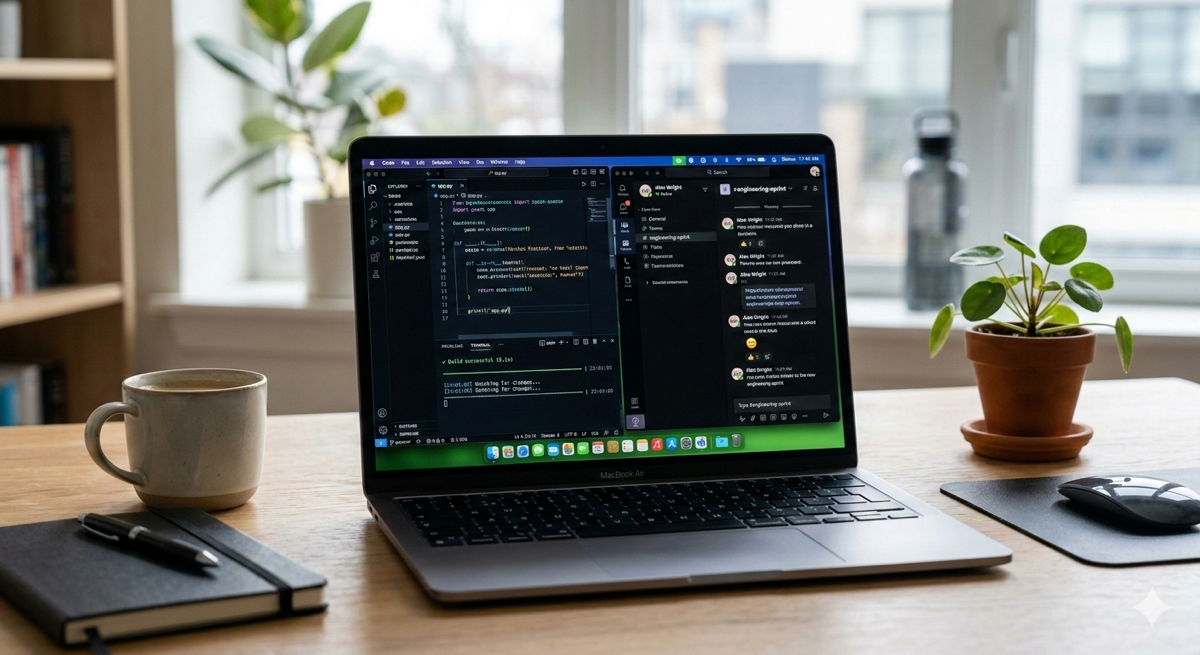
The Problem
Stop worrying about your status.
Microsoft Teams turns you 'Away' after 5 minutes of inactivity. Don't let it misrepresent your productivity.
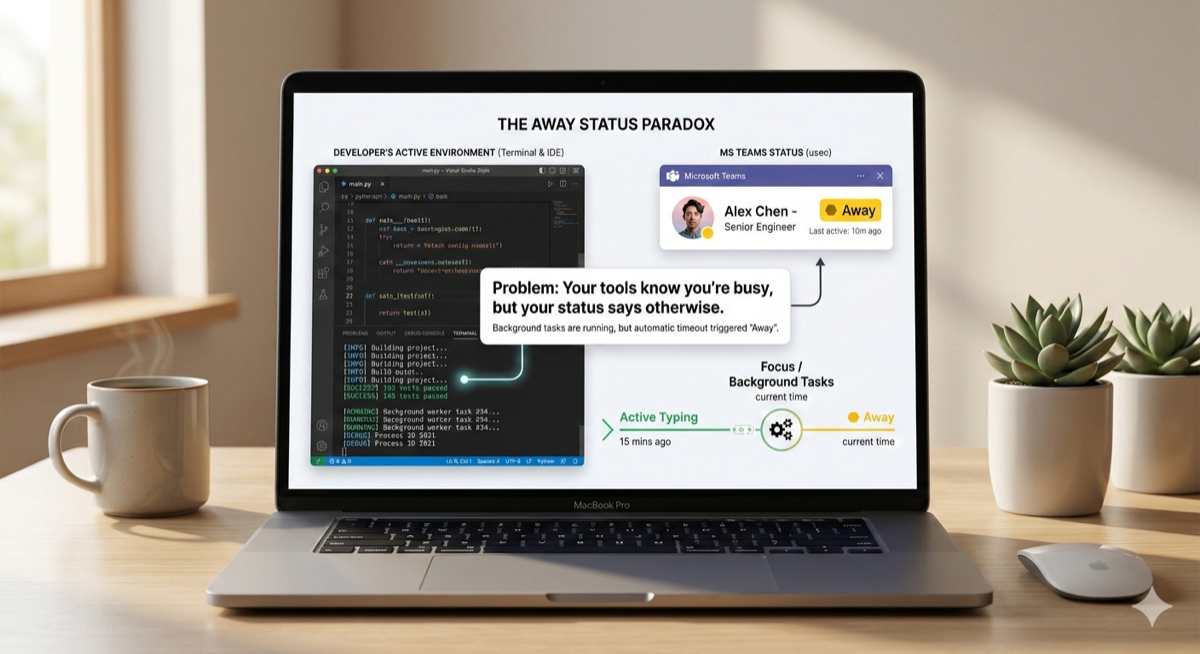
Why Microsoft Teams shows Away
What causes Microsoft Teams to show Away? Microsoft Teams shows Away when it infers you are not at your computer. The app does not have a permanent "Available" setting; it uses system activity to decide. If there is no keyboard or mouse input for a few minutes, Teams assumes you are idle and switches your status to Away. That is why so many people search for how to keep Teams active and prevent Teams away.
How Teams detects inactivity
How Teams presence detection works: Teams relies on your operating system to report user activity. When the OS sees no recent keyboard or mouse events—typically after about five minutes—it considers the session idle. Teams then updates your presence to Away. Why Teams shows Away, and after how long, is covered separately. Keeping the status Available means the computer has to keep reporting activity.
Manual tricks compared with NoAway
Moving the mouse, resting a weight on a key, or running PowerShell or AppleScript to simulate input are alternatives to NoAway, and they differ in ways you can check. A hardware mouse jiggler is a USB device and needs no software on the computer. A script needs the same system permissions as any app that simulates input, plus your own upkeep. NoAway is software for Mac and Windows: it keeps the display awake, prevents sleep, and simulates input; on macOS it needs Accessibility permission and it must keep running (menu bar or system tray). A locked screen, calendar status, company policy, and presence on other devices are outside what NoAway controls. Setting Available by hand does not stick: Teams overwrites it as soon as the session looks idle. Sleep and energy settings are a separate control. On Windows they live under Settings, System, Power. On Mac they live under System Settings, Lock Screen and Energy. They decide when the display or disk sleeps. They do not change the idle signal Teams reads.
How to keep the Teams icon green on Mac and Windows
The Teams icon is green when your status is Available and yellow when it is Away. There is no switch in Teams that locks the icon on green. The same steps work on both systems: install NoAway, then turn Keep Active on. On Windows it sits in the system tray. On Mac it sits in the menu bar. Leave it on during a build, a download, or a long read, and Teams keeps seeing an active session.
Microsoft documents how presence is chosen in Teams presence and status and changing your status in Teams. A manual Available status is still replaced when Teams sees no keyboard or mouse input.
Long Downloads
Gigabytes of data shouldn't mean you're "away" from your desk. Stay green while you wait.
Software Builds
Compiling complex projects? Keep your status active while your machine does the heavy lifting.
Deep Work
Reading or reviewing a document shouldn't flip your status to Away.
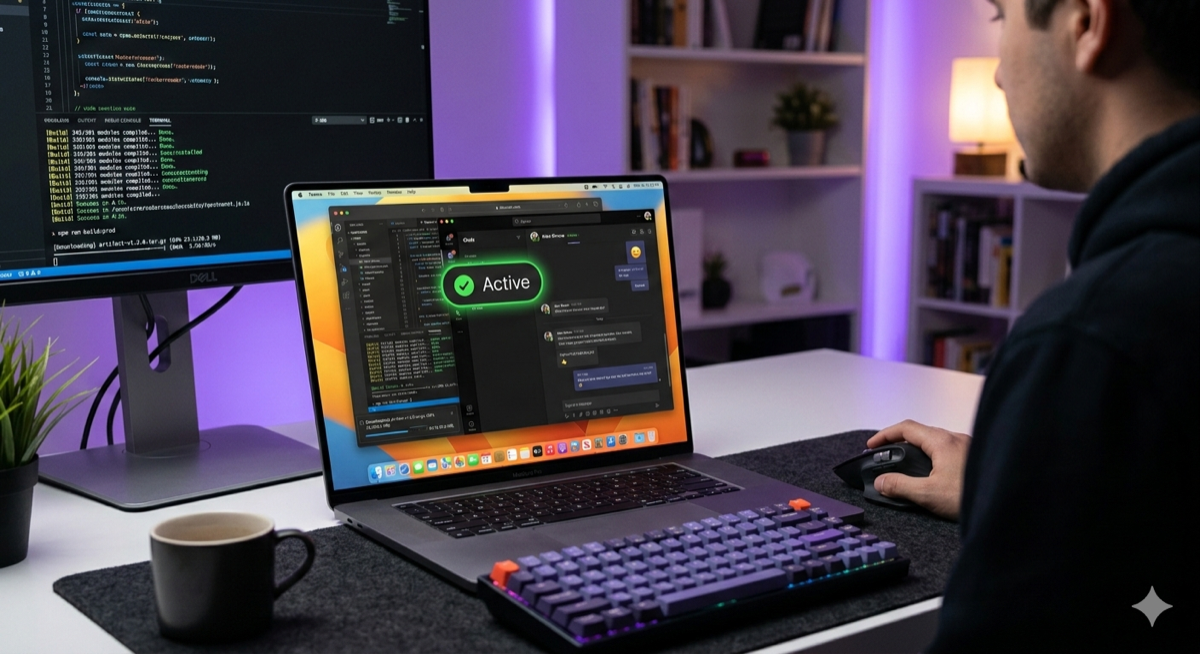
The Solution
Keep Teams Web App status as Active. Native. Lightweight.
NoAway lives in your system tray or menu bar. It doesn't use a browser window, doesn't require administrator rights, and won't slow down your machine.
-
checkWorks with Teams, Slack, and Discord
-
checkKeep Active runs locally (no keystrokes, screen, chats, or files). License checks send license key, device id, and limited usage fields (version, platform, activity mode, detected apps, active seconds).
-
checkSimple 'Set and Forget' interface
What NoAway controls — and what it doesn’t
It controls
System activity and sleep on the computer where NoAway is running, while Keep Active is on.
It doesn’t
Calendar status, a locked screen, company policy, and presence on other devices.
Three clicks, then back to the work.
Get up and running in less than 60 seconds.
1. Download & Install
Grab the lightweight installer for macOS or Windows. No admin rights needed.
2. Activate with One Click
Click the NoAway icon in your tray and hit "Start". Your computer stays active, so Teams does not flip you to Away during a build, a download, or a call.
3. Focus on what matters
Start a render, share your screen, or keep working on a second machine. Your status stays Available while that work is still going.
Frequently Asked Questions
How do I stop Microsoft Teams from showing Away? expand_more
Teams switches to Away when it detects no keyboard or mouse activity. Turn on Keep Active in NoAway from the tray or menu bar so this computer does not go idle during a long build, a render, a large download, or a screen share. You do not need to move the mouse yourself. Whether Teams shows Available also depends on permissions and the conditions listed in Help.
How many minutes until Teams turns yellow? expand_more
About 5 minutes. Microsoft Teams typically turns your status to Away (yellow) after roughly five minutes of no keyboard or mouse input on the desktop app. Keeping the system active stops that idle timer.
Can I set Teams to always stay Available? expand_more
No. Teams has no permanent Available setting. A status you set by hand is replaced after a few minutes without keyboard or mouse input. Keeping the computer active is what stops that switch.
How do I keep the Teams icon green on Mac and Windows? expand_more
Install NoAway and turn Keep Active on from the Windows system tray or the Mac menu bar. Green means Available and yellow means Away. Sleep settings alone do not keep the icon green, because they do not change the idle signal Teams uses.
More FAQ — Compare prices — Download NoAway — How to keep status active, keep the Teams icon green, stop Teams turning yellow, avoid Away when forced to use Teams, and more.
Ready to reclaim your status?
Keep this computer from going idle while you work. One-time purchase.
Kill the stress—it's just five bucks!
Updates emailed with download link · One-time Purchase · Win & Mac Support