Launch price €4.99 · one-time, no subscription · regular price €9.99 soon
Anti-idle engine v2.0

Keep Teams and Slack from going Away

NoAway for Mac and Windows. One-time €4.99 (regular €9.99) — keeps this computer from going idle so Teams and Slack are less likely to show Away.

NoAway keeps your computer active while it is switched on. Whether Teams or Slack show you as Available also depends on permissions and on the conditions listed in Help. Help

Buy NoAway – €4.99

Mac & Windows · one-time payment · instant download after purchase

Not satisfied? Request a refund within 7 days

See Teams, why Teams shows Away, Slack, or sleep.
Available
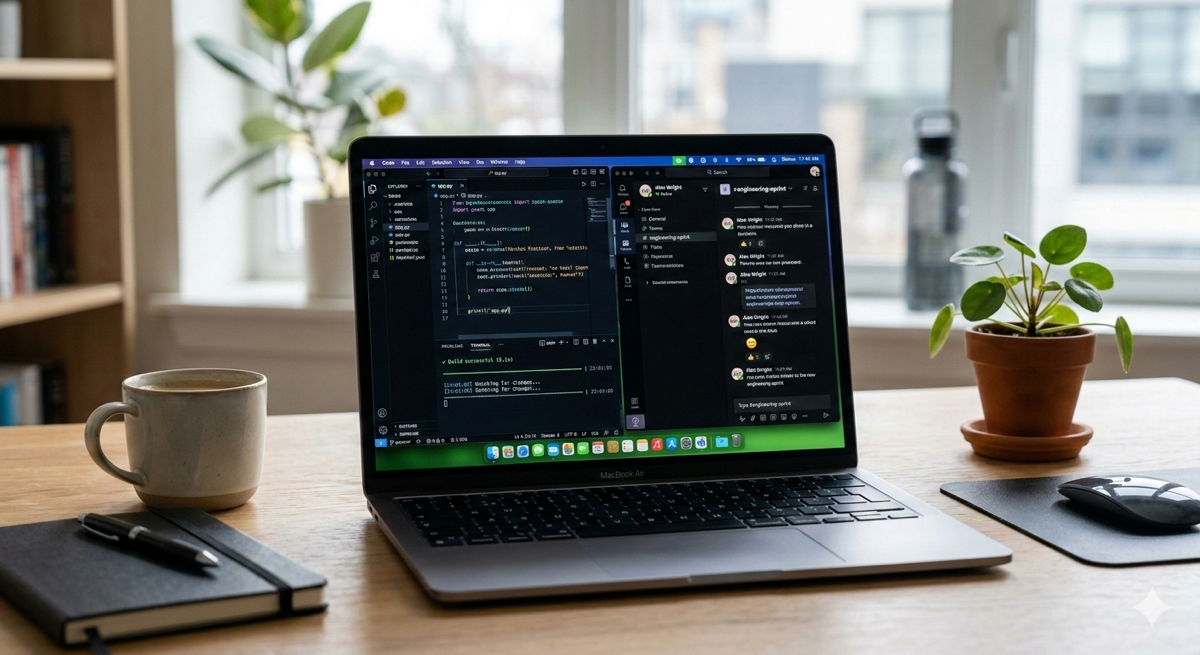
Desktop with the NoAway window open and a green Available indicator in the corner

What NoAway controls — and what it doesn’t

It controls

System activity and sleep on the computer where NoAway is running, while Keep Active is on.

It doesn’t

Calendar status, a locked screen, company policy, and presence on other devices.

Why your status suddenly turns Away—and how to keep Teams active

Standard power settings can make your computer idle at the worst possible moment. Learn how to keep Teams active and get help with setup.

download_for_offline

Large Downloads

Downloading files can take minutes or hours. Your computer goes idle — and your status turns Away.

terminal

Software Builds

Developers often wait for builds and tests. Your machine is busy, but your status says you're inactive.

home_work

Remote Work

During remote work, appearing Away can create unnecessary stress or misunderstandings.

co_present

Presentations

While preparing slides or reading documentation, inactivity can change your status unexpectedly.

Stay Active on Teams and Slack—automatically

A lightweight app that runs in the background so your computer stays active while you work. No mouse jiggling and no scripts—set it during a build, a render, or a large download.

Explore all features
flight

Ultra Lightweight

Uses almost no CPU or memory and runs silently in the background.

touch_app

Stays awake while you work

Keeps your computer from going idle during long builds, renders, and large downloads, so your status does not flip to Away.

visibility

Works with Teams, Slack and more

Teams, Slack, and similar apps read that activity signal.

power_settings_new

Auto Start

Automatically runs when your computer boots.

devices

Mac & Windows

Fully compatible with macOS and Windows.

Why people use NoAway

How it works

Install → Enable → Stay Available.

download

1. Install

Download for Mac or Windows and install in a few clicks.

toggle_on

2. Enable

Turn on NoAway from the menu bar or system tray. One click.

verified_user

3. Keep this computer active

Teams and Slack are less likely to show Away while you are still working. Calendar, a locked screen, and other devices can still change presence.

Perfect for

code

Developers

home_work

Remote Workers

palette

Designers

school

Students

How to keep Microsoft Teams active and keep the Teams icon green

Many remote workers ask how to keep Teams active and prevent Teams away. Microsoft Teams automatically changes your status to Away after a few minutes of inactivity—so learning how to keep the Teams icon green matters.

This can happen while you are:

  • downloading files
  • waiting for builds
  • reading documentation
  • attending meetings
  • watching presentations

Even though you are still working, your status may appear as inactive.

NoAway prevents this by keeping your computer active automatically. Keep Teams Web App status as Active and follow the best practice for staying active: prevent your system from going idle.

As long as NoAway is running, your system does not enter an idle state, helping apps like Microsoft Teams or Slack show Away less often.

This simple tool removes the stress of unexpectedly appearing Away during important work.

If you're searching for how to keep your status always online in Microsoft Teams or how you actually set Teams to always available, NoAway provides a simple one-click solution.

Frequently Asked Questions

How do I stop Microsoft Teams from showing Away? expand_more
Teams switches to Away when the computer has seen no keyboard or mouse activity for a few minutes. NoAway is a Mac and Windows app that keeps this computer from going idle, which is the signal the Teams desktop app reads, during downloads, builds, or deep work. Whether Teams shows Available also depends on permissions and the conditions listed in Help.
How many minutes until Teams turns yellow, and how do I keep the icon green? expand_more
Teams typically turns your status to Away (yellow) after about 5 minutes without keyboard or mouse input on the desktop app. Keeping this computer active stops that idle timer, and NoAway does that while Keep Active is on. A locked screen, calendar, calls, company policy, or another device can still change the icon. How to keep the Teams icon green on Mac and Windows.
Will my status stay Available while I am working? expand_more
Not always. While NoAway is on, this computer does not go idle and does not sleep. Teams and Slack read that signal, so they are less likely to show Away during a build, a render, or a large download. Calendar, a locked screen, company policy, and other devices can still change presence.
Is using NoAway safe? expand_more
NoAway is a desktop utility. It does not read files or messages. Keep Active runs on your computer and does not send keystrokes, screen contents, chats, or files. Network use is for licensing: activation sends your license key, purchase email, and a device id; periodic license checks also send app version, platform, activity mode, which of Teams/Slack/Zoom/Discord appear to be running, and how many seconds Keep Active was on that day—so we can validate the one-device license and understand product usage. Details are on the Is NoAway safe page.
Does NoAway slow down my computer? expand_more
No. NoAway runs quietly in the background and is designed to use minimal system resources.
Does NoAway send my activity anywhere? expand_more
Keep Active runs on your computer and does not send keystrokes, screen contents, chats, or files. Network use is for licensing: activation sends your license key, purchase email, and a device id; periodic license checks also send app version, platform, activity mode, which of Teams/Slack/Zoom/Discord appear to be running, and how many seconds Keep Active was on that day—so we can validate the one-device license and understand product usage. License check runs when you activate, and again periodically while the app is installed (about once every 24 hours). Activation sends the purchase email with the license key and device id. See the privacy page for the full list.
Do I need to keep the app open? expand_more
No. You can close the NoAway window; the process must keep running (menu bar on Mac, system tray on Windows). NoAway can also start automatically when your computer boots.
Is this a subscription? expand_more
No. NoAway is a one-time purchase. One license works on one device. Lifetime updates means future versions are emailed to buyers with a direct download link to the new version.

Trusted by developers, remote workers and professionals worldwide

"Slack stayed green while I reviewed a long spec on the other screen."
"That 4-hour build actually finished. No more 3am wake-ups."
"Teams stayed Available through the render. I was on a call on my phone."
"Download didn't die at 97%. Faith in humanity restored."
"Screen stayed on during the whole demo. MVP material."
"Set it and forget it. My laptop gets it."
"The only app that reliably keeps my long ML builds running overnight."
NoAway user avatar
NoAway user avatar
NoAway user avatar
NoAway user avatar

Used by remote workers, developers and IT pros

Stay Active on Teams.
Stay Available.

A small tool that removes the stress of going Away during work.

Launch price €4.99 — Regular price €9.99.

Kill the stress—it's just five bucks!

One-time purchase. Updates are emailed to buyers with a direct download link.

Buy NoAway – €4.99

Mac & Windows · one-time payment · instant download after purchase