
How NoAway works
Install it once, enable it when needed, and your computer stays active automatically. No complicated setup and no hidden settings.
In brief
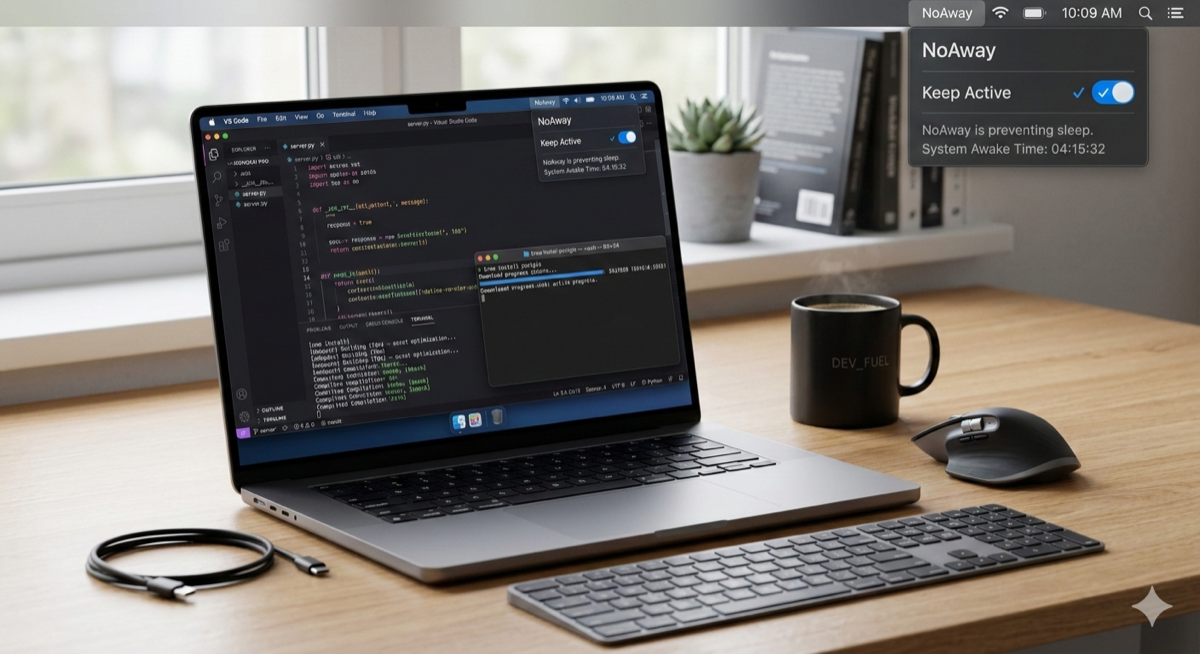
NoAway is a tray app for Mac and Windows. Install it, enable Keep Active, and it prevents your computer from going idle. NoAway keeps your computer active while it is switched on. Whether Teams or Slack show you as Available also depends on permissions and on the conditions listed in Help. See Help for the full list of conditions. It does not open or modify Teams or Slack, and it does not access your files or messages.
Last reviewed: October 22, 2026
The 3-Step Process
From installation to staying active in seconds.
1. Install
Download the application and install it like any normal desktop app on macOS or Windows.
2. Enable
Open NoAway and enable the “Keep Active” mode from the tray or menu bar.
3. Stay Active
Your computer will remain active while NoAway is running, preventing the system from entering an idle state during long tasks.
First setup
-
Install
Download the installer from your purchase email and install it. Requirements: macOS 11 (Big Sur) or later; Windows 10/11 (64-bit).
-
Activate your license
Launch NoAway and enter your license key. One license works on one device.
-
Grant Accessibility (Mac only)
On macOS, Accessibility permission is required so the system (and apps like Teams) treat simulated input as real activity. Grant it under System Settings → Privacy & Security → Accessibility, then quit and reopen NoAway.
-
Enable Keep Active
Open NoAway from the menu bar or system tray and turn on Keep Active. You can close the NoAway window; the process must keep running (menu bar on Mac, system tray on Windows).
-
Verify
Leave the computer untouched for about 15 minutes, then check your status in Teams or Slack.
Not working? Go to Troubleshooting.
Designed to stay out of your way
NoAway runs quietly in the background and focuses on doing one thing well: preventing your computer from going idle when you need it to stay active.
- check_circle Lightweight background operation
- check_circle Simple tray-based controls
- check_circle Compatible with macOS and Windows
- check_circle Designed for long work sessions
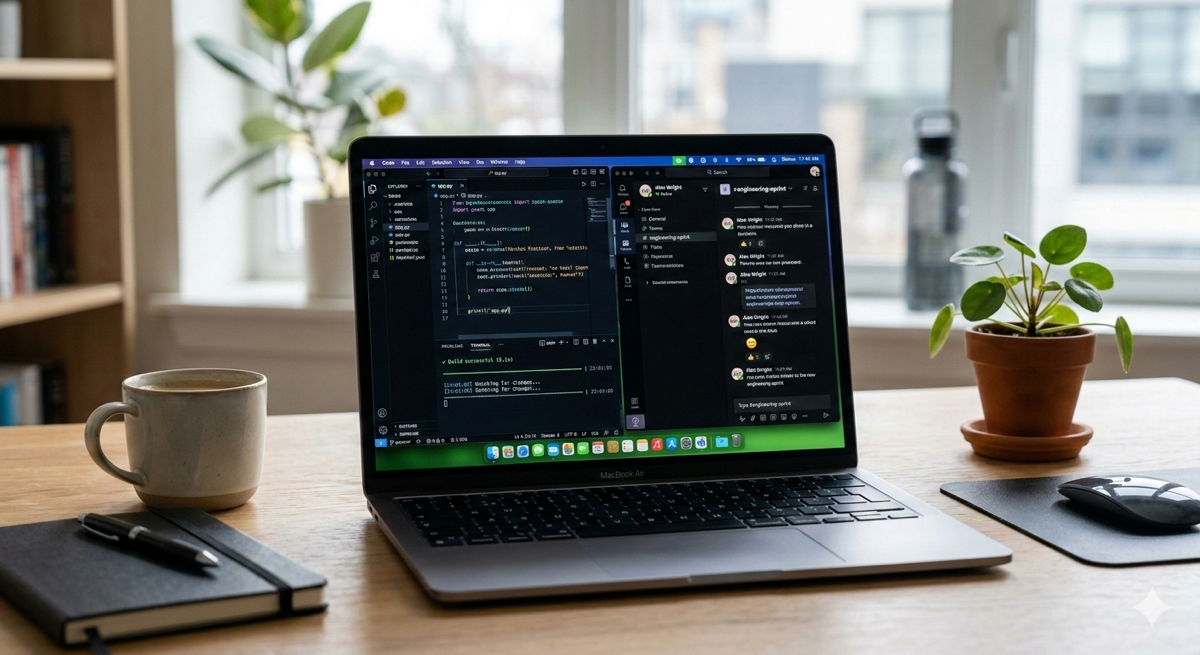
Security and privacy first
Keep Active runs on your computer and does not send keystrokes, screen contents, chats, or files. Network use is for licensing: activation sends your license key, purchase email, and a device id; periodic license checks also send app version, platform, activity mode, which of Teams/Slack/Zoom/Discord appear to be running, and how many seconds Keep Active was on that day—so we can validate the one-device license and understand product usage.
The application simply prevents your computer from entering an idle state when the feature is enabled.
Ready to stay active?
On your phone? Email yourself the link and buy on your computer.
Mac & Windows · one-time payment · instant download after purchase